


 Jolian
 October 9, 2026
1. Understanding ClonBrowser and IPFLY
ClonBrowser is a tool for managing independent browser environments. Users can create separate browser profiles for different tasks and manage browsing data, environment settings, and network connections independently.
IPFLY provides proxy IPs from multiple regions around the world. Its residential proxies route network requests through IP addresses associated with residential networks, making them suitable for regional website testing, localized content checks, and authorized market research.
By combining ClonBrowser with IPFLY, users can configure an independent network connection for each browser environment, making it easier to manage different projects. Please note that all IPFLY products are supported for use only in overseas network environments.
2. Prepare Your IPFLY Proxy Information
Before you begin, register for and log in to your IPFLY account. Then, obtain the proxy connection information required for your specific needs.
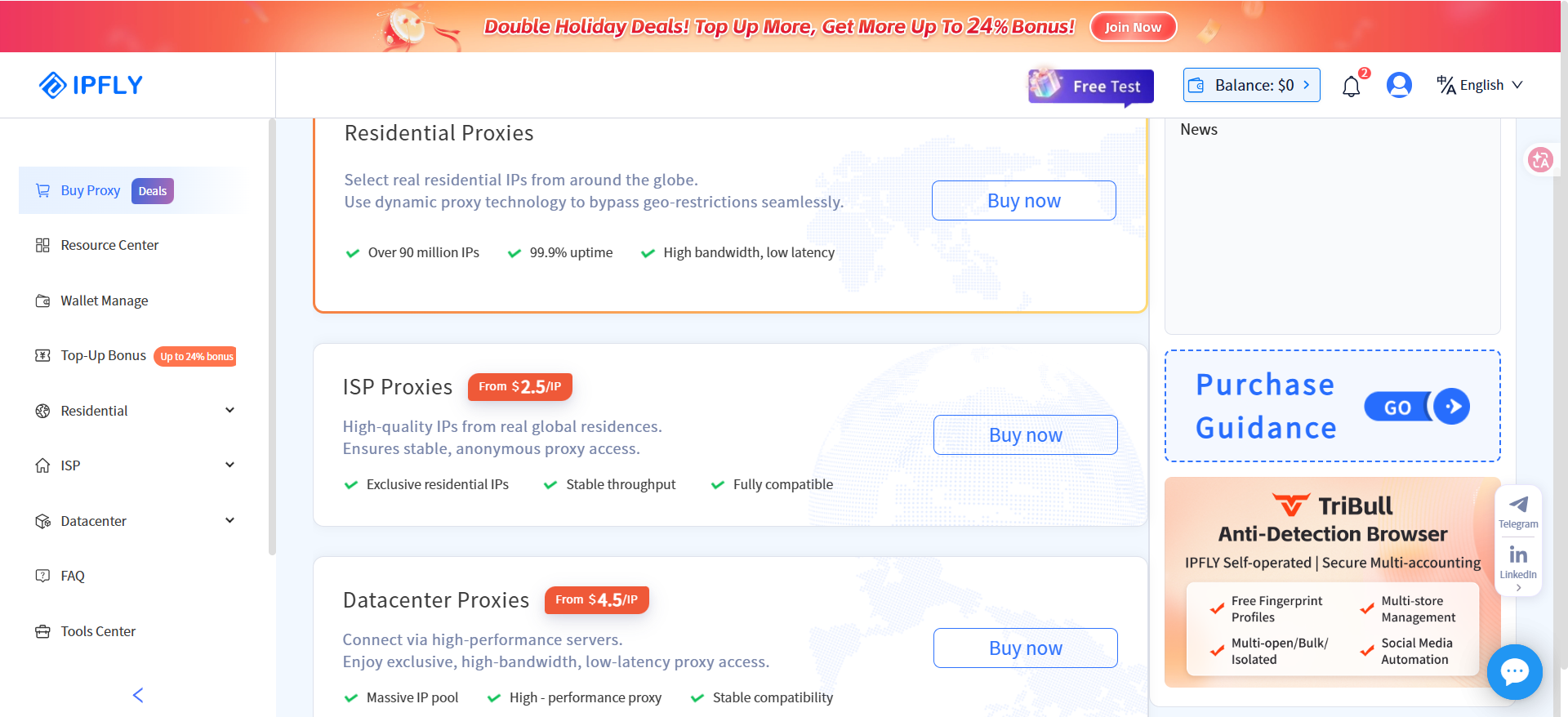
This guide uses a static residential proxy as an example. Select the proxy type, billing period, target location, and other options according to your requirements. After completing the purchase, you will receive the necessary connection details, which typically include the proxy type, host, port, username, and password.
The information above is for demonstration purposes only. When configuring your proxy, use the actual connection details provided in your IPFLY account.
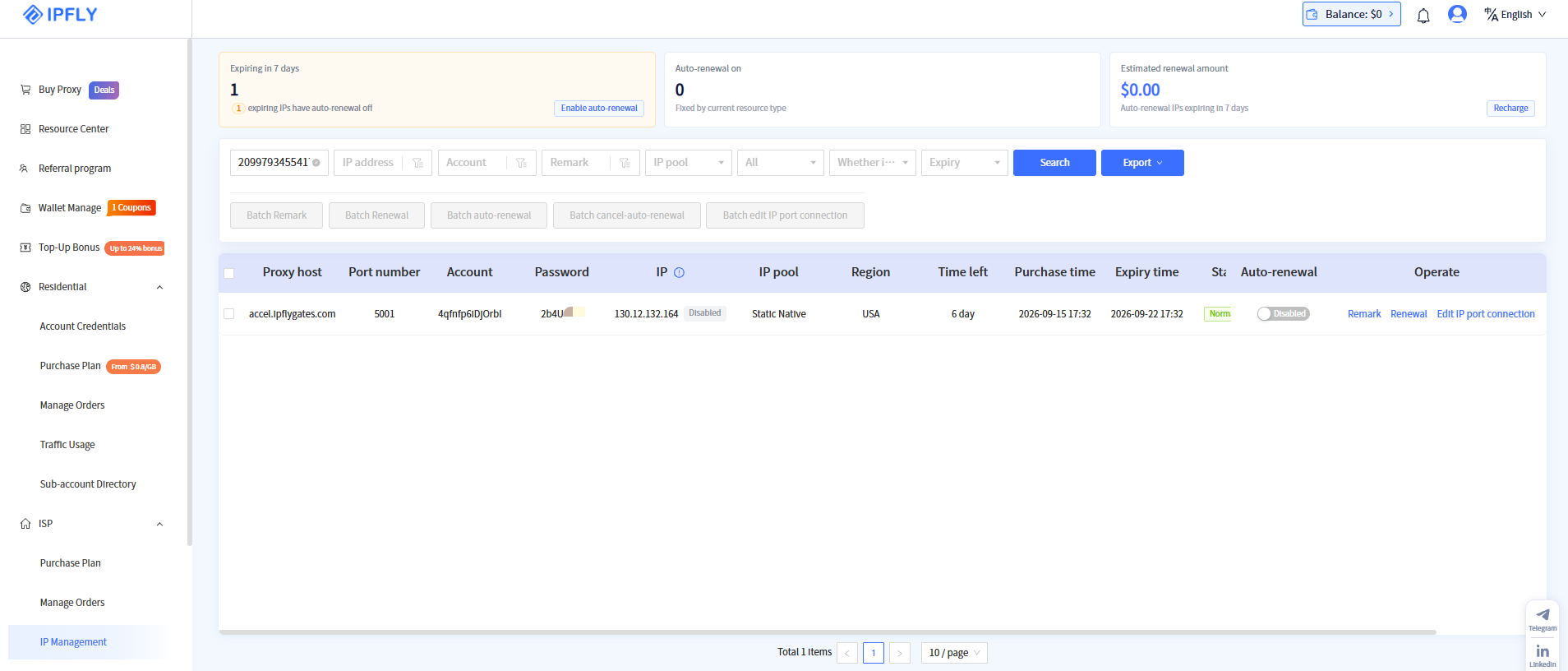
3. How to Configure an IPFLY Proxy in ClonBrowser
Step 1: Create a Browser Environment
Log in to ClonBrowser and create a new browser environment. Give the environment a recognizable name based on its intended use, such as "IPFLY-US-01."
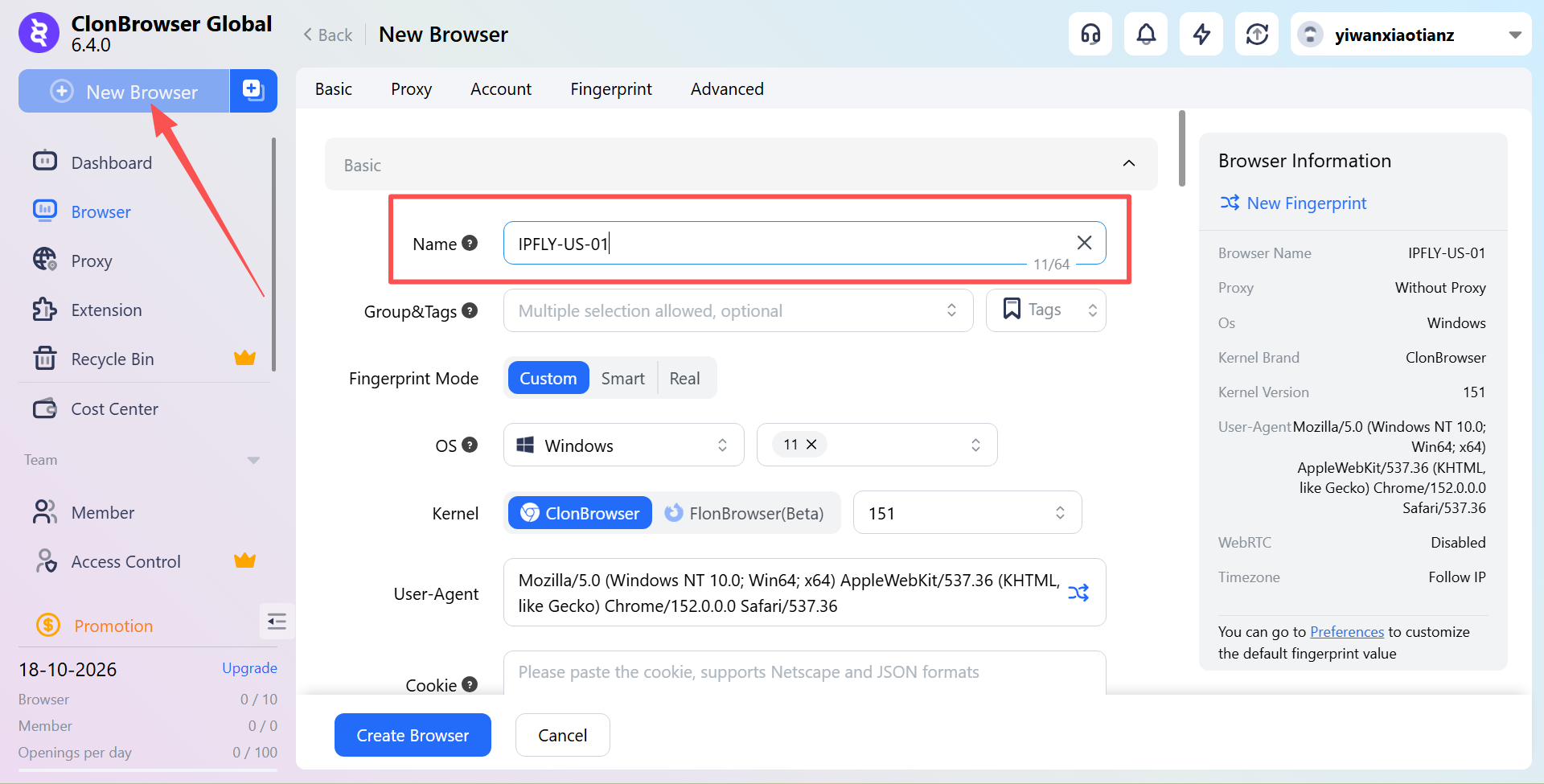
During the setup process, configure the basic browser settings according to your project requirements. For easier management, use different environment names for different projects and avoid mixing browsing data from separate projects.
Step 2: Configure the Proxy Information
Open the proxy settings of the newly created browser environment. Select the custom proxy option and set the proxy protocol to SOCKS5.
Then, enter the host, port, username, and password provided by IPFLY.
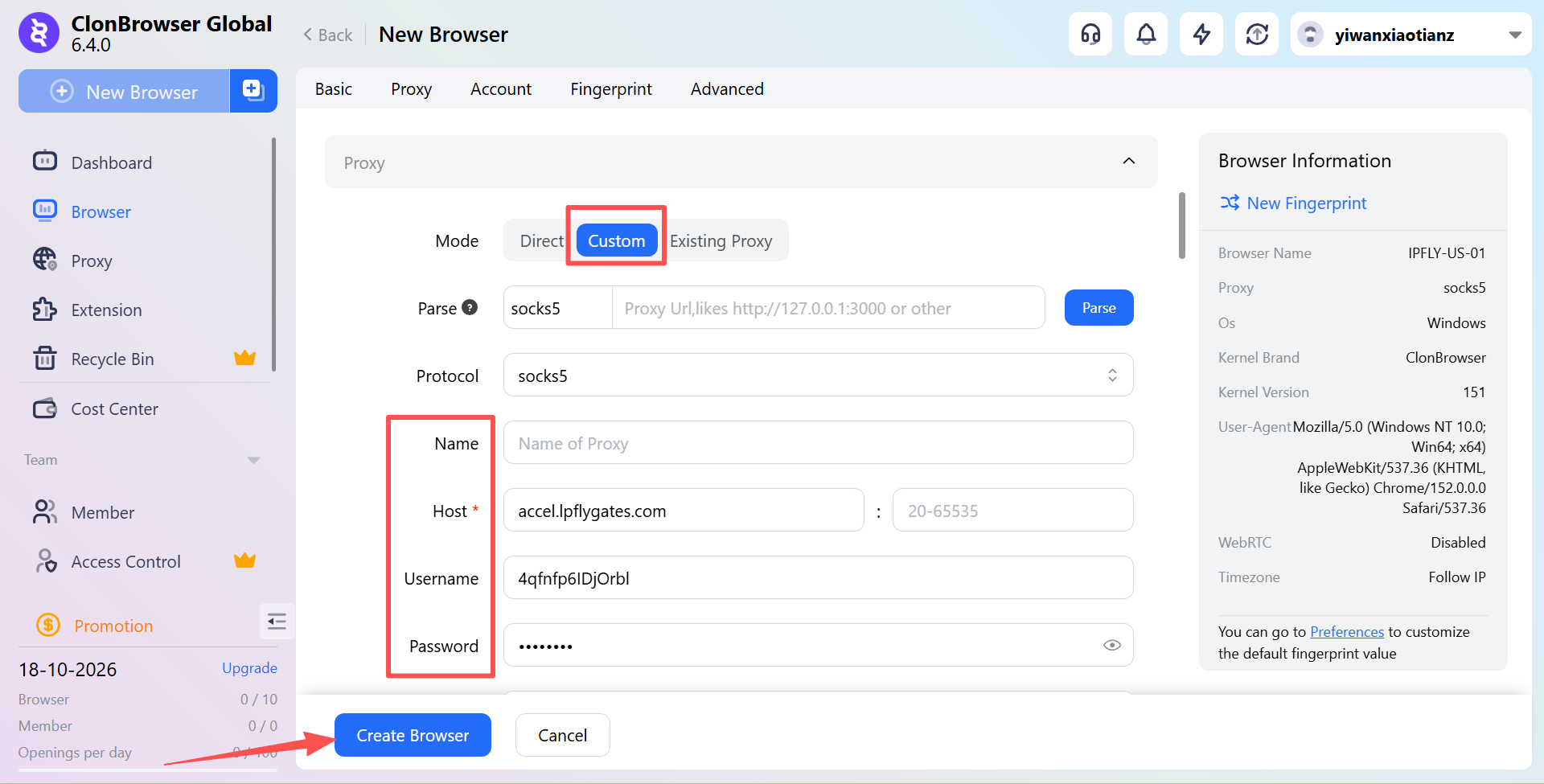
After entering the information, carefully check the proxy protocol, port, and authentication details to prevent connection failures caused by incorrect settings.
Step 3: Test the Proxy Connection
Once you have entered the proxy information, use ClonBrowser's connection testing feature to check whether the proxy is working properly.
If the test is successful, review the detected IP address and geographic location. If the information generally meets your expectations, save the proxy settings and create or save the browser environment.
If the connection test fails, check the proxy host, port, username, password, and protocol to ensure that all details have been entered correctly.
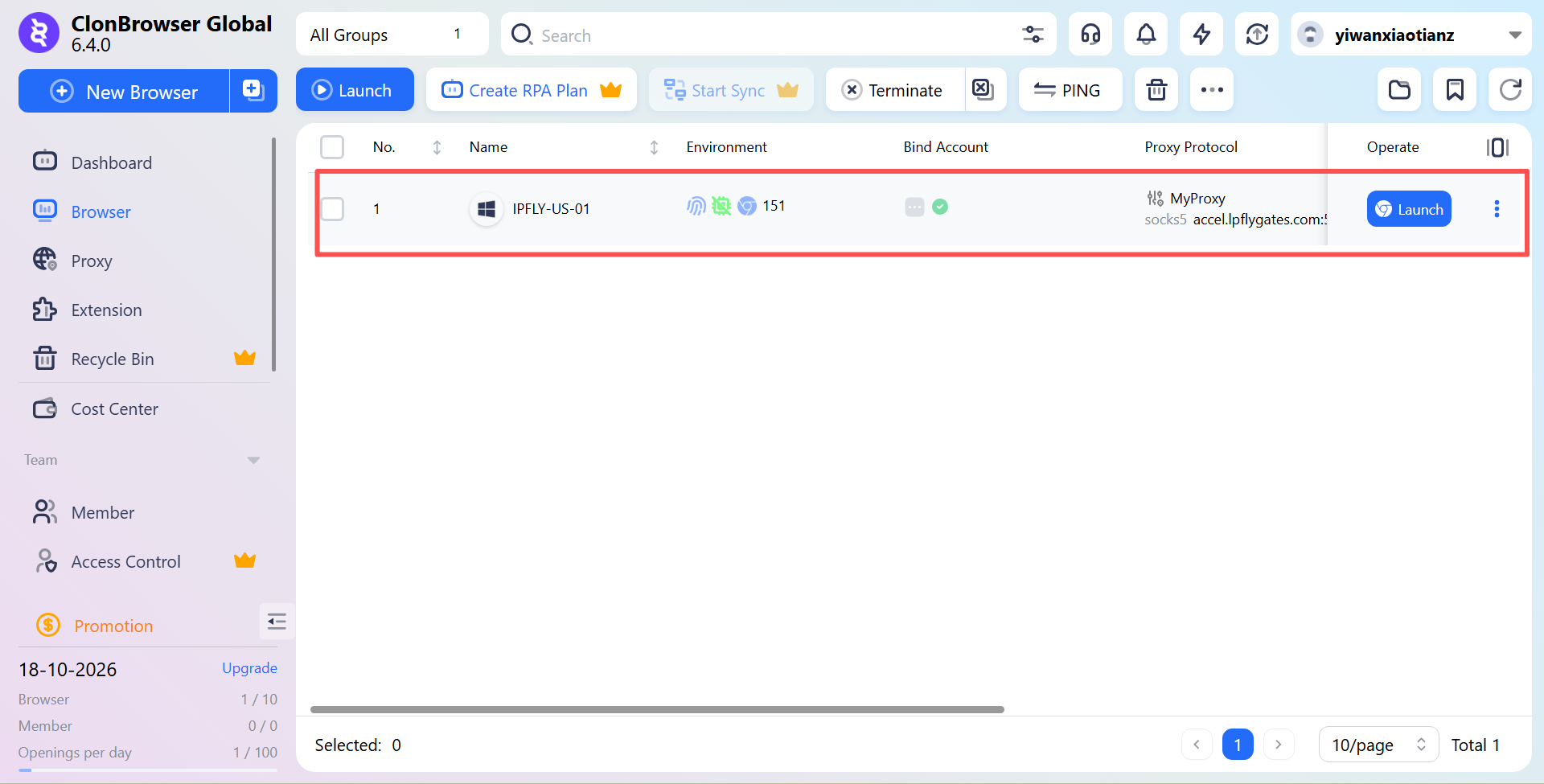
Step 4: Launch the Environment and Verify the IP Address
After saving the settings, launch the newly created browser environment and visit a reliable IP-checking website to verify the public IP address being used by the environment.
You can then visit the target website to confirm that the page loads properly and check whether the displayed regional information meets your testing requirements.
Keep in mind that different IP-checking services may use different geolocation databases. As a result, the city or region shown in the results may not always be completely accurate.
4. Common Configuration Issues and Solutions
If the proxy connection test fails, first check whether the host, port, username, and password are correct. Also, make sure that the selected proxy protocol matches the protocol provided by IPFLY.
If the browser environment launches successfully but websites do not load properly, try visiting other websites to determine whether the issue is related to a specific website. You can also check the proxy status and restart the browser environment.
If the detected IP location does not match your expectations, use another IP-checking service for cross-verification. Different services may rely on different geolocation databases, so variations in the results are possible.
If one browser environment works properly while another cannot connect, check the proxy settings of each environment separately. Network configurations in ClonBrowser may be independent of one another, so you should not assume that all environments use the same proxy settings.
5. Best Practices for Managing ClonBrowser Environments
To make browser environments easier to manage, use clear and consistent naming conventions. Store browsing data and environment settings separately for different projects.
If a project requires a stable IP from a specific region over an extended period, avoid changing the proxy too frequently and keep a record of configuration changes. At the same time, protect your IPFLY username and password, and avoid sharing proxy credentials with unauthorized individuals.
When using ClonBrowser and IPFLY for regional testing, market research, or other business activities, make sure to comply with applicable laws, regulations, and the terms of service of the target websites.
Conclusion
The basic process of configuring an IPFLY proxy in ClonBrowser involves creating a browser environment, entering the proxy information, testing the connection, and verifying the public IP address.
By creating independent browser environments and assigning suitable proxy connections to different projects, users can manage regional website testing, market research, and multi-project browsing activities in a more organized way. Accurate proxy configuration and regular connection checks can also help provide a smoother overall experience.