How to upload custom extensions#
Overview#
The custom extension upload feature allows you to import local browser extensions into ClonBrowser for unified use across browser environments.
In ClonBrowser, extensions are not tied to a specific computer. Instead, they are uploaded for unified management and can be assigned to different browser environments.
This feature is useful if you are facing any of the following:
- Need to install third-party extensions (e-commerce tools, social media tools, etc.)
- Want the team to use the same extensions uniformly
- Don’t want each member to install extensions individually
- Need to reuse extensions across multiple browser environments
By uploading custom extensions, you can achieve centralized extension management and batch assignment.
Step-by-step Instructions#
1. Upload Extension#
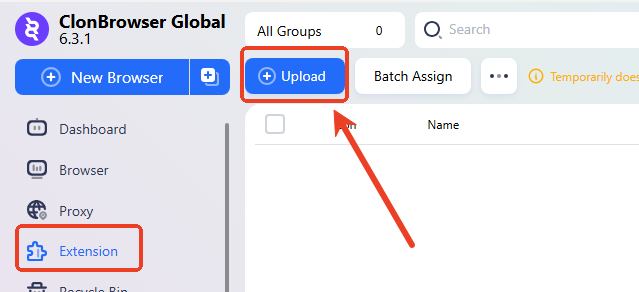
Log into ClonBrowser, then click 「Extension Management」 on the left menu.
On the extension management page, click “Upload”.
2. Select Extension File and Upload#
ClonBrowser supports uploading extensions via Chrome Web Store URL, as well as package formats.
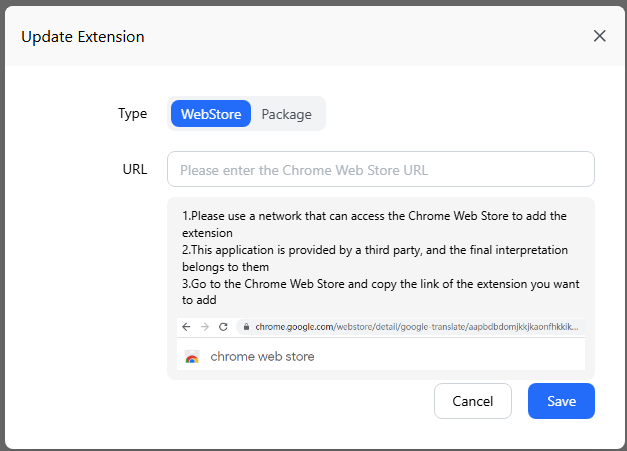
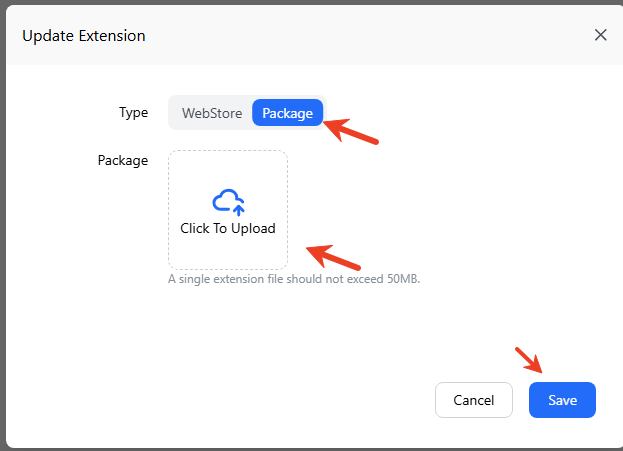
Select a local extension file to upload. Common formats include:
.crxfiles- Unzipped extension folders
Save after uploading.
3. Upload Successful — Start Managing#
After successful upload, the extension will appear in the extension list.
You can later assign this extension to designated browser environments for use.
FAQ#
1. Does the extension take effect automatically after uploading? No. You need to assign it to a browser environment for it to take effect.
2. Can I upload multiple extensions? Yes. Multiple extensions can be uploaded and managed centrally.
3. What formats are supported?
Typically .crx files or unzipped extension directories.
4. Can team members use the extensions directly? Yes. After assignment, members can use the extension when using the corresponding browser environment.
Uploading custom extensions gives your browser environments more capabilities and improves team collaboration efficiency.