Member management#
Overview#
The member management feature allows you to view, adjust, and maintain team member status, including:
- View current team members
- Modify member roles and permissions
- Adjust browser environments accessible to members
- Remove members
In ClonBrowser, accounts and browser environments are separate. Members are only authorized to use environments — they don’t own the accounts themselves.
Step-by-step Instructions#
1. View Member Information#
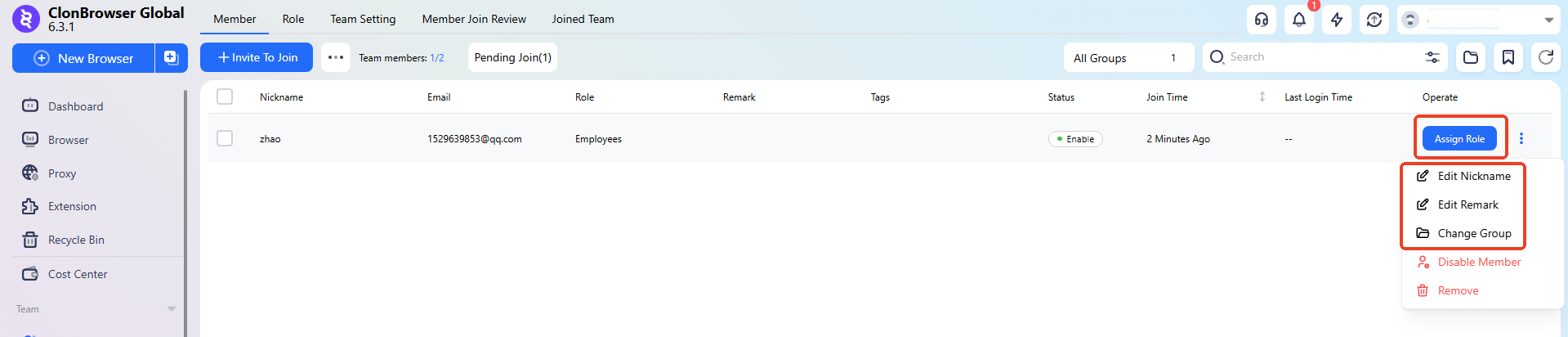
You can view member nickname, member account, current role status, join time, last login time, etc.
You can modify member roles, nicknames, notes, and change groups.
2. Temporarily Disable When Personnel Changes#
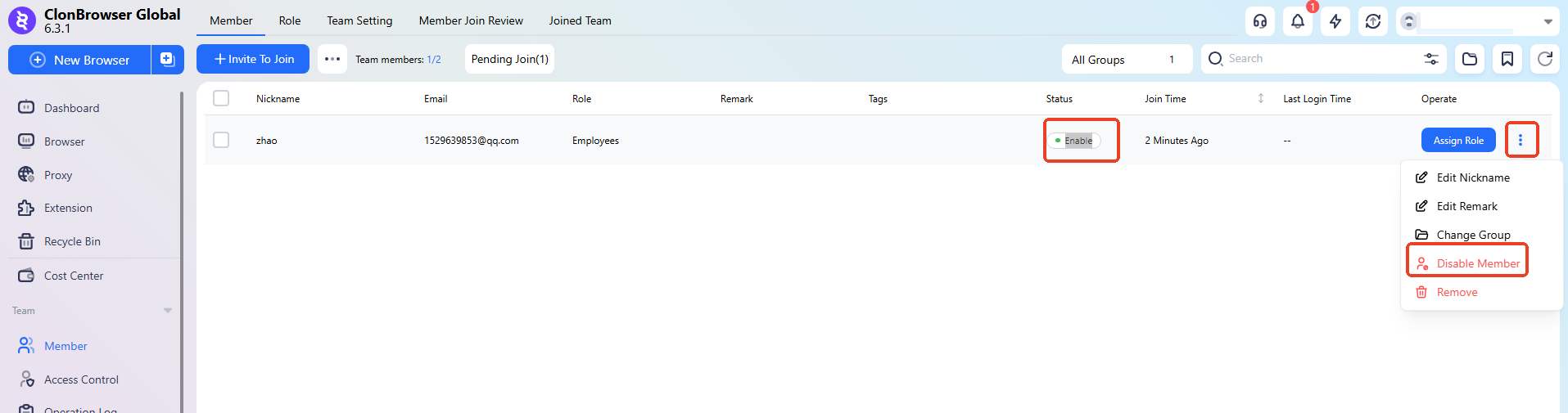
After disabling, the member will be immediately removed from the team and prevented from logging in.
Re-enable to restore.
3. Remove Members#
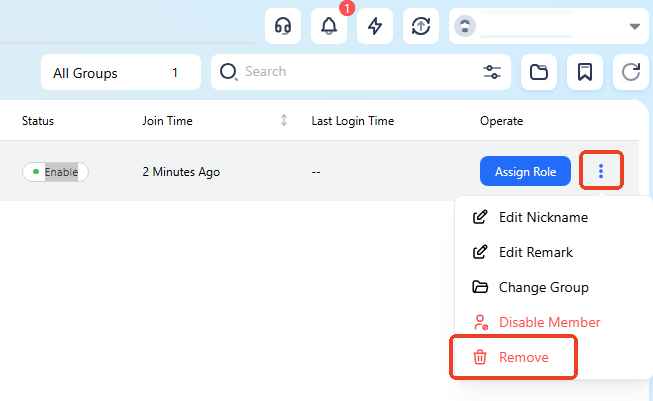
When a member leaves or is no longer involved in a project, you can “Remove Member.”
After removal:
- The member will no longer be able to access team resources
- Browser environments and accounts remain with the team
FAQ#
1. Will removing a member affect browser environments? No. Browser environments belong to the team, not the individual.
2. Can members see all browser environments? They can only see the browser environments assigned to them.
3. Do I need to re-invite the member after changing their role? No. Role adjustments take effect immediately. The member just needs to re-log in.
4. Can I restore a removed member? You need to send a new invitation and re-assign permissions.