How to view RPA execution results#
Overview#
The RPA execution records feature allows you to view the execution status of RPA automation tasks, including success status, failure reasons, and execution logs.
In ClonBrowser, each RPA execution generates corresponding records, making it easy for you to:
- Determine if a task was executed successfully
- View the specific execution process
- Troubleshoot failure reasons
- Optimize automation workflows
This feature is useful if you are facing any of the following:
- Not sure if a task has completed
- Some accounts failed to execute
- Need to review the execution process
- Want to optimize automation performance
By viewing execution results, you can use automation capabilities more reliably.
Step-by-step Instructions#
1. Access RPA Execution Records#
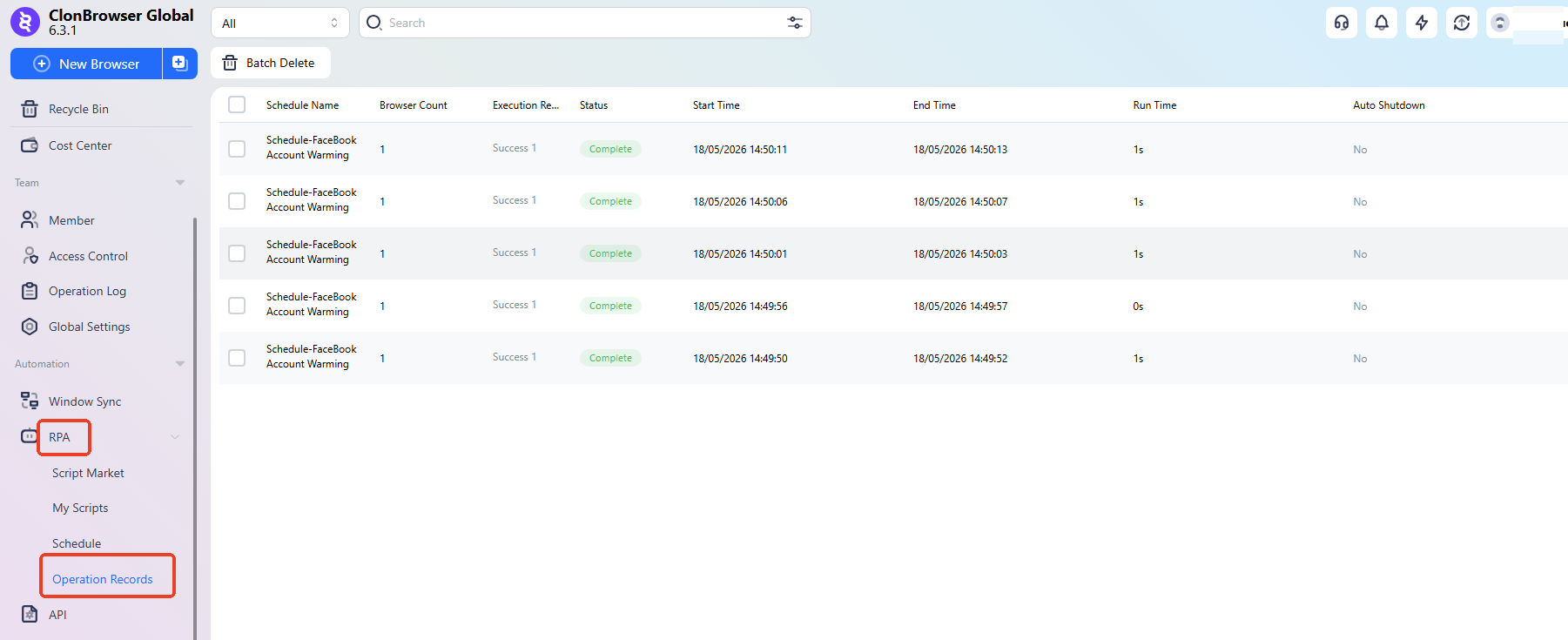
Go to the 「RPA」 module and open “Execution Records”.
2. View Execution Results#
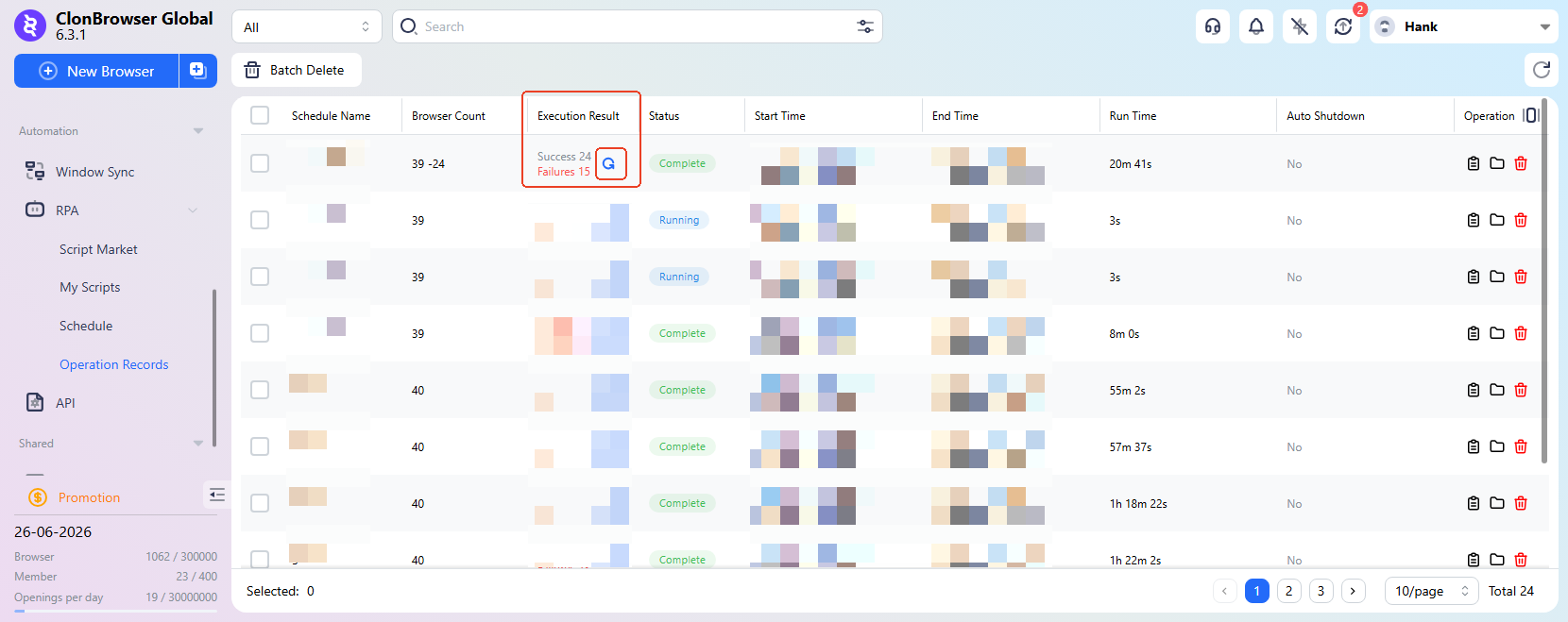
In the execution records list, you can see:
- Execution status (Success / Failed / In Progress)
- Execution time
- Number of execution environments
If there are failed tasks, you can click 「Re-run Failed Tasks」
3. View Logs#
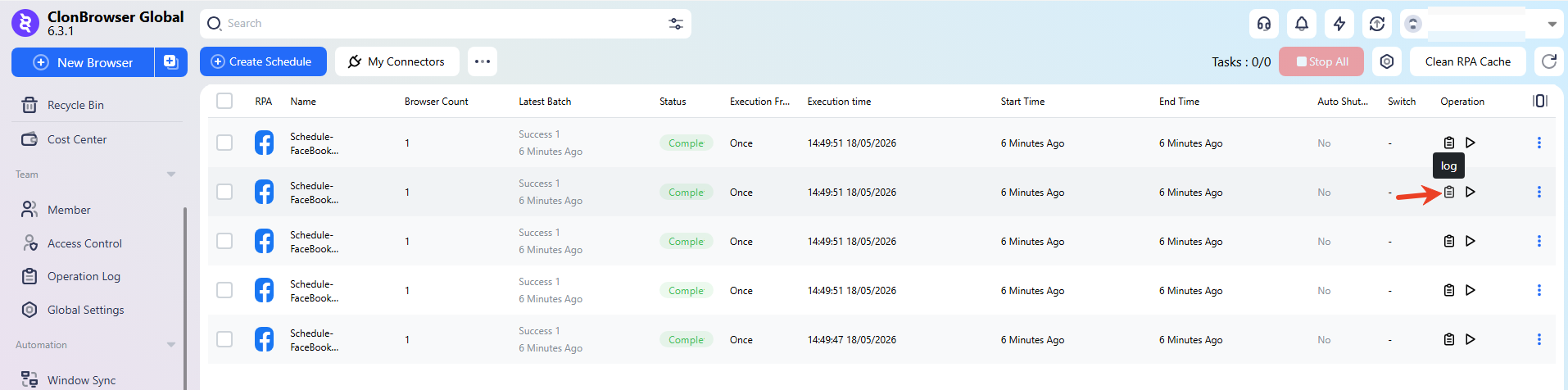
Some tasks support viewing:
- Execution logs
- Run screenshots
Used for further problem analysis.
FAQ#
1. Why does it show success but the result doesn’t meet expectations? This could be due to page changes or data entry issues. Check the script logic and input parameters.
2. Can I re-run after a task fails? Yes. It’s recommended to first identify the reason for failure before re-running.
3. How to quickly locate the cause of failure? Check individual environment execution records and log information, focusing on the failed step.
4. How long are execution records kept? The specific retention period depends on system settings or plan limits.
By reviewing RPA execution results, you can continuously optimize automation workflows and improve execution stability.