How to assign browser environments to members#
Overview#
The assign browser environment feature allows you to authorize designated browser environments to team members for use.
In ClonBrowser, accounts are bound within browser environments, and members only get “usage permissions” — they don’t need to know the account passwords.
Step-by-step Instructions#
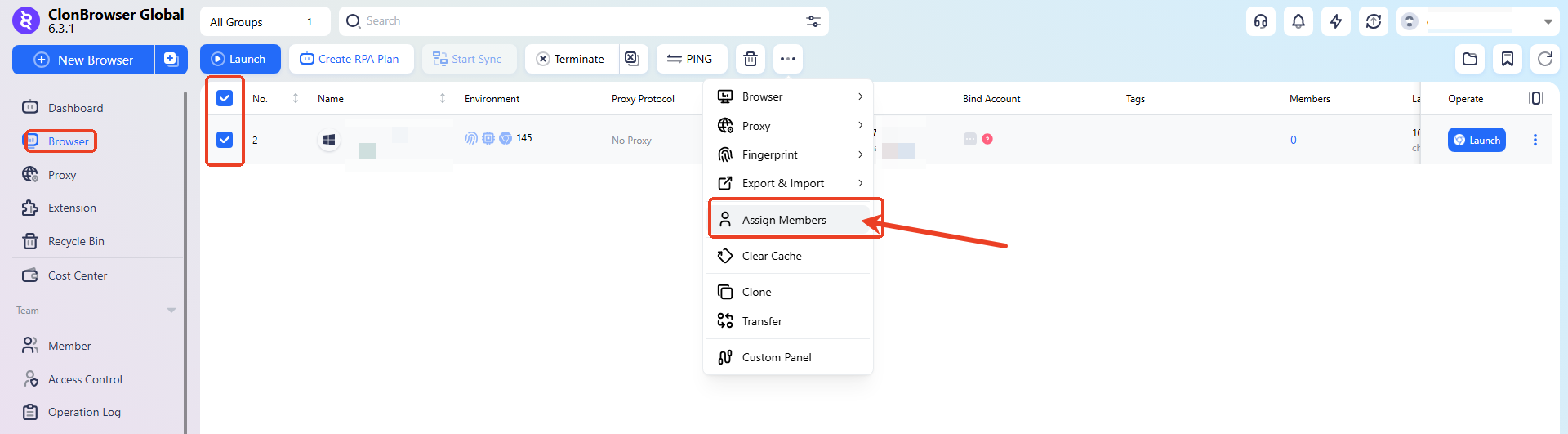
1. Select Browser Environments to Assign#
Check the browsers you want to assign, click “More” in the function area, then select “Assign to Members”.
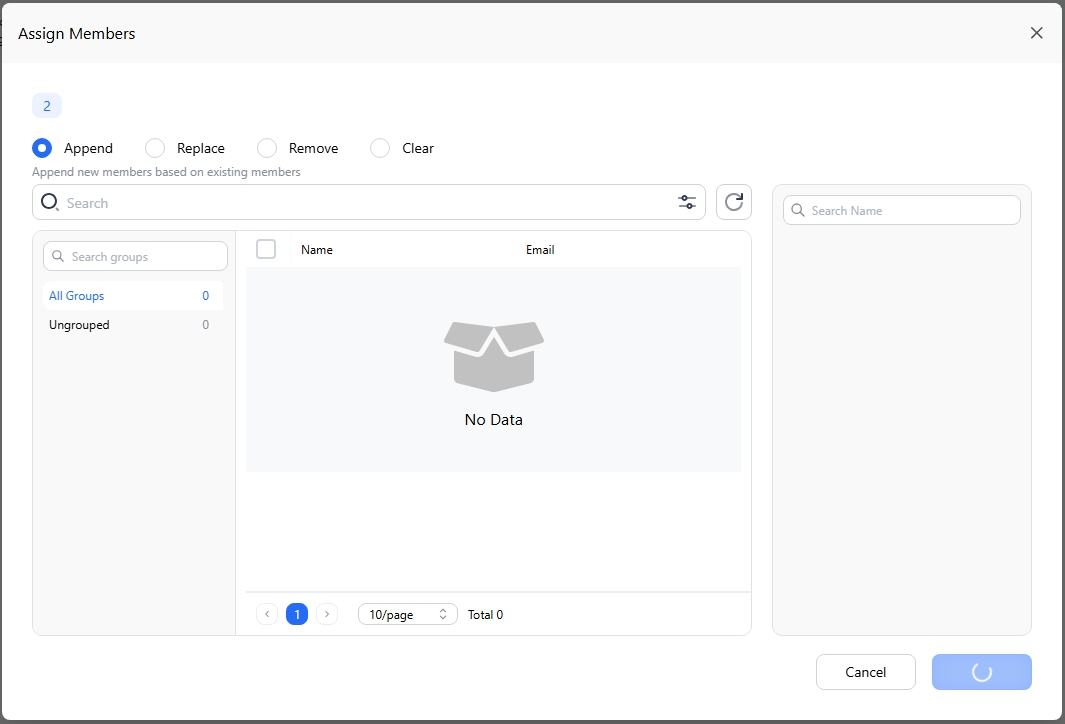
2. Assign to Members#
After confirming and saving, the member will be able to see and use these browser environments in their own account.
3. Member Verification#
After the member refreshes or re-logs in, they will see the assigned environments in the browser environment list and can launch and use them.
FAQ#
1. Can one browser environment be assigned to multiple members? Yes.
2. What if a member leaves? Simply remove the member in team management or revoke their environment permissions. Accounts and browser environments are not affected.
3. The member can’t see the browser environment after assignment? Please confirm:
- The member has successfully joined the team
- The browser environment assignment has been saved
- The member has refreshed or re-logged into the client