How to use RPA automation#
What is this feature for?#
RPA automation is used to hand over time-consuming, repetitive, and fixed web operations (batch data collection, batch account nurturing, etc.) to ClonBrowser RPA for automated execution.
- Turn repetitive work into batch execution: The same workflow can run across multiple browser environments
- Reduce manual operation costs: Especially suitable for daily operations with multiple stores, accounts, and projects
- Standardize workflows: Different team members executing the same task get more consistent results
If you find yourself doing something every day/week with roughly the same steps — that’s the perfect candidate for automation.
Step-by-step Instructions#
Prepare the Browser Environments#
You need to ensure:
- Each account that will execute tasks already has a corresponding browser environment
- The browser environment has completed necessary preparations (e.g., logged in, proxy configured)
👉 Related references: How to create a new browser environment | How to configure a proxy
1. Get a Script (Two Methods)#
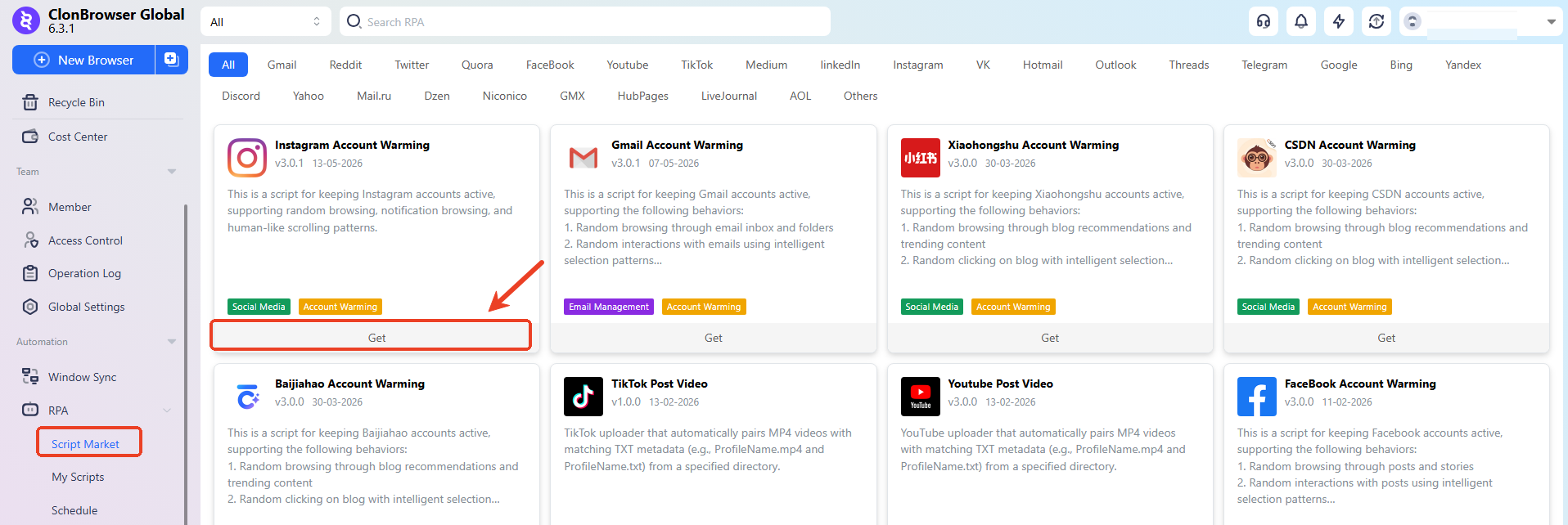
Search the script marketplace for what you want to do (e.g., “list,” “change price,” “post,” “download report”), click get/add to my scripts.
If you can’t find a suitable RPA script, contact official customer support to customize one.
2. Configure Script Parameters#
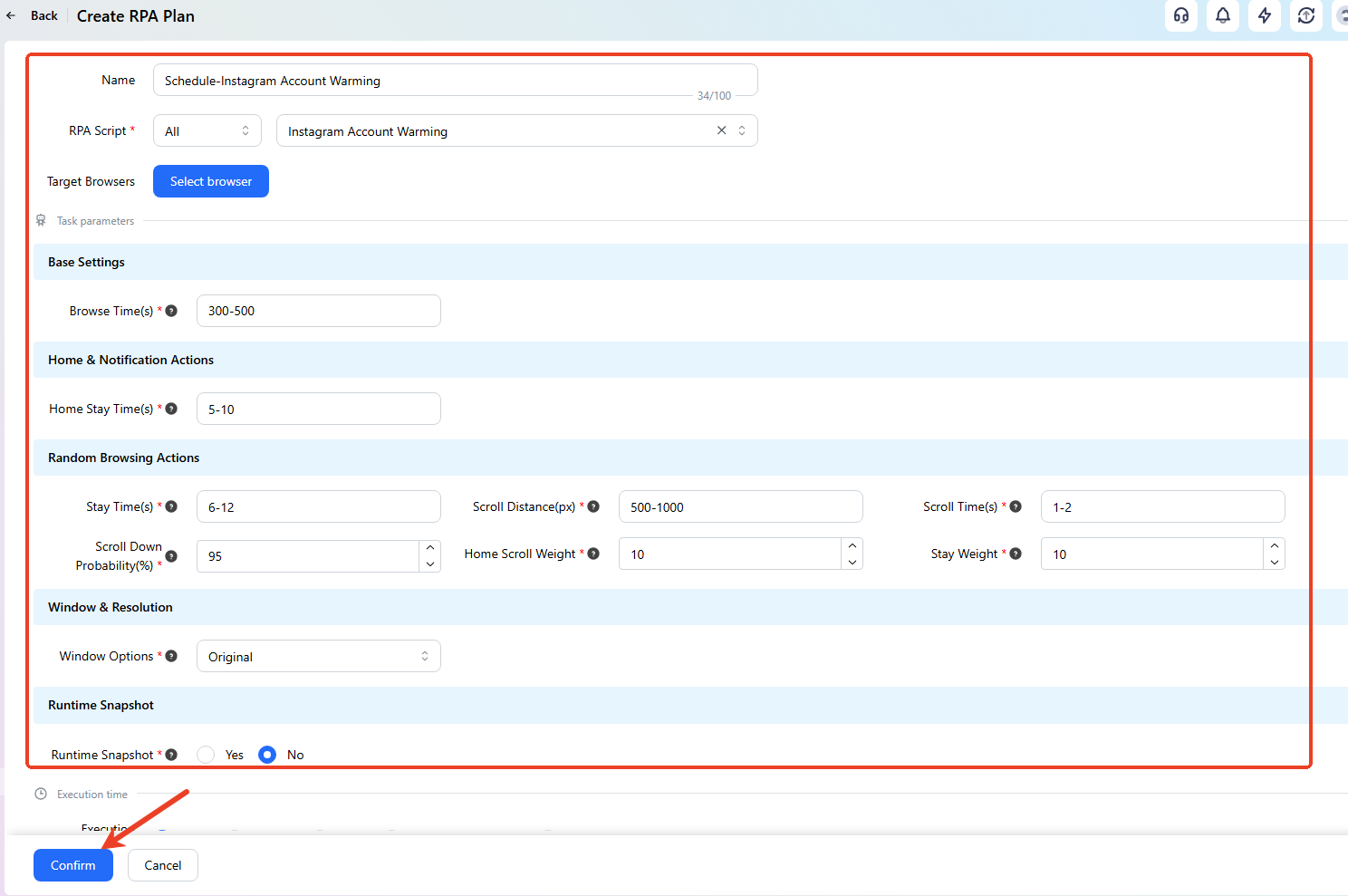
After selecting a script, you typically need to configure:
- Target site/entry URL (if the script requires it)
- Input data (e.g., product title, price, text content, file path)
- Execution strategy (whether to loop, whether to add intervals, whether to retry on failure)
Save after configuration.
3. Create an Execution Plan (Run the Script)#
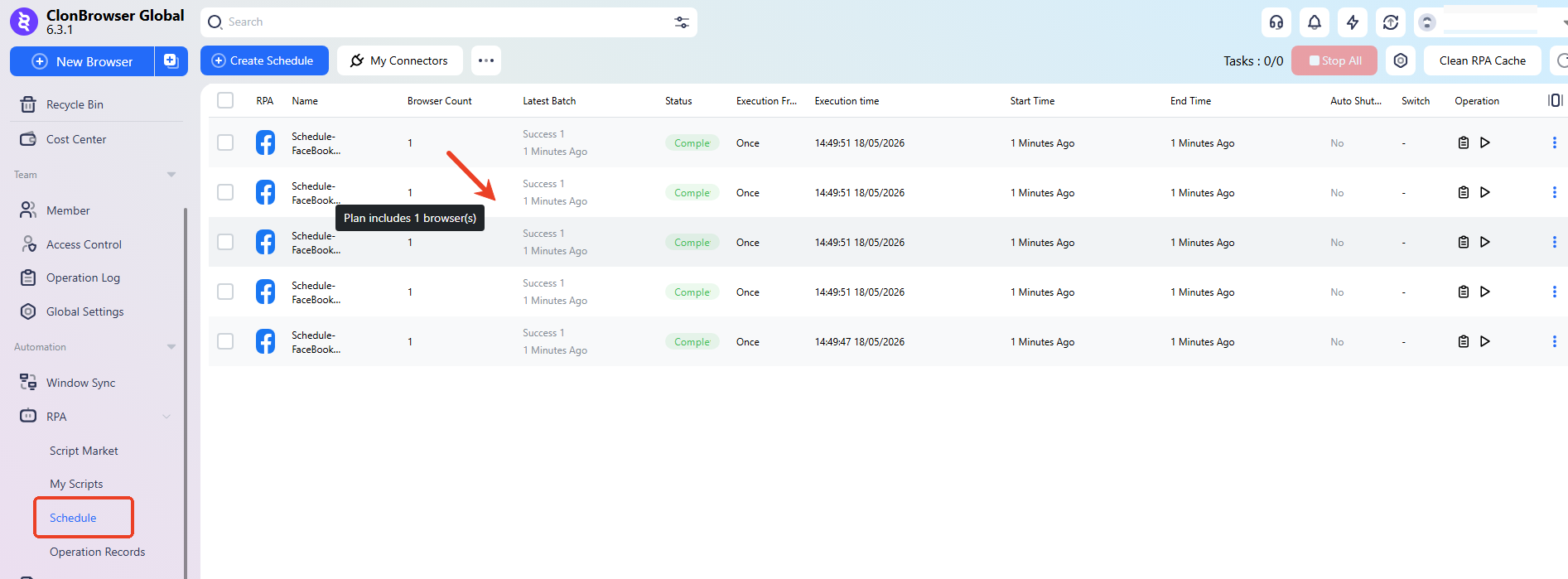
Select a script in “My Scripts” and create a scheduled task:
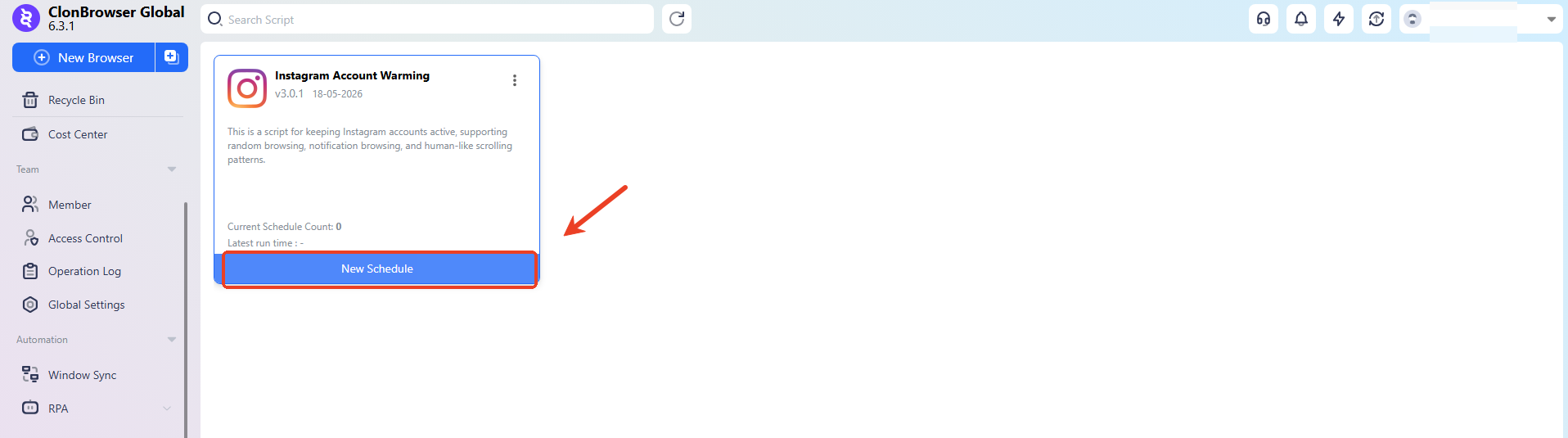
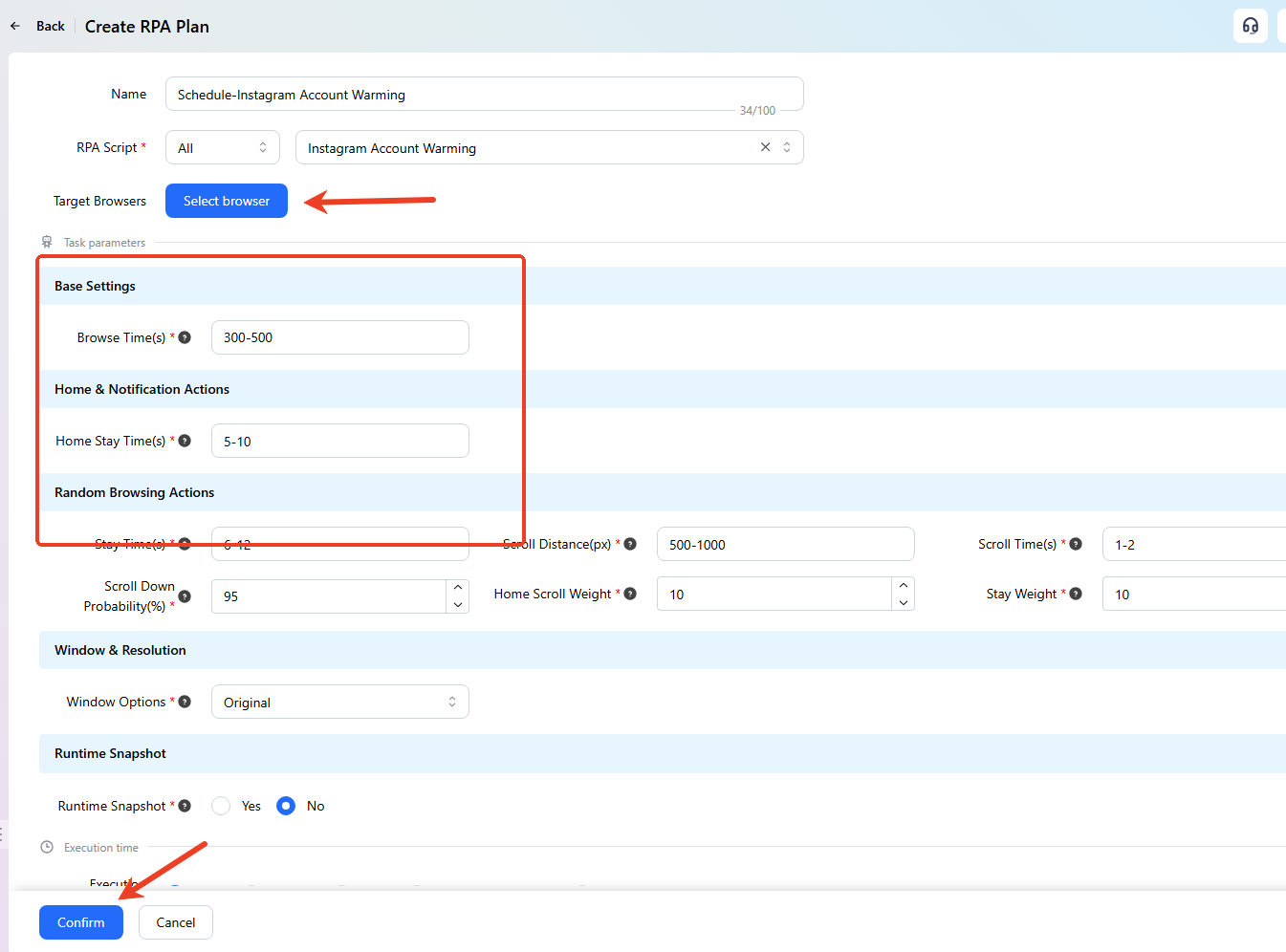
You need to choose:
- Browser environments to execute (multiple selection available)
- Execution method: Run now / Scheduled execution
- Concurrency mode: Run simultaneously or queue (based on your machine’s performance and task risk)
- Execution count: One-time / Daily / Weekly (if periodic tasks are supported)
Save the plan and start execution.
4. View Run Results and Logs#
During/after script execution, it’s recommended to review:
- The execution status for each environment (success/failed/retrying)
- Failure reasons (network, page element changes, login expired, etc.)
- Screenshots or log records (if provided by the system)
If a failure occurs, don’t rush to “run it again.” First identify which step failed, then adjust the parameters/environment.
FAQ#
1) Why does the same script perform differently across different accounts?#
Common reasons:
- Different account login states (some logged in, some logged out)
- Different page states (some on the homepage, some on popups/verification pages)
- Unstable proxy networks or region mismatches
Suggested approach:
- Before running the task, manually open a few environments to confirm the pages are consistent
- Try to ensure the same batch of tasks uses the same entry path
2) The script failed halfway — should I continue?#
Don’t blindly rerun. Instead:
- First check where it failed (which step)
- After fixing, whether to “restart from the beginning” or “resume from the failure point” depends on whether the script supports checkpoints
- For batch environment execution, test with 1-2 environments first before scaling up
3) What if the page is redesigned and the script stops working?#
RPA scripts usually depend on page element positions or button structures. After a page redesign: buttons may not be found, click positions may be off, form fields may change.
How to handle:
- Prioritize updating to a new version of the script from the marketplace
- For custom scripts, contact official customer support for redesign adaptation
4) Is it recommended to run RPA on many environments at once?#
Take it step by step:
- Beginners: First get 1 environment working
- Experienced: 3-5 environments concurrently
- Large scale: Use batched queuing + intervals to reduce pressure and anomaly probability
Higher concurrency requires more from your computer’s performance, network, and proxy stability.
5) Which tasks should not be automated?#
It’s not recommended to fully automate high-risk or strongly-verified actions, such as:
- Frequently modifying sensitive information (passwords, payment info, etc.)
- High-frequency repetitive form submissions
- Review processes that require human judgment
We recommend using automation for tasks that are clearly defined, highly repetitive, and have high error tolerance.