How to reset your password#
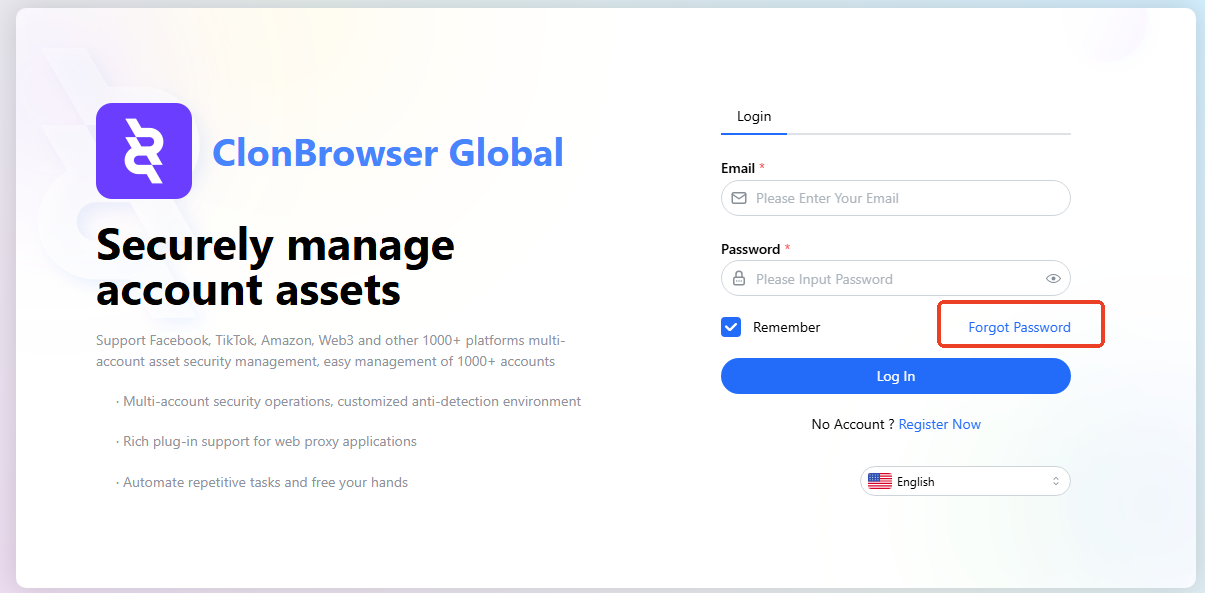
1. Go to the Login Page#
Open the ClonBrowser login page, click “Forgot Password” or “Reset Password”.
2. Enter Your Registered Email#
On the password reset page, enter the email address used during registration. Click “Send Verification Code”.
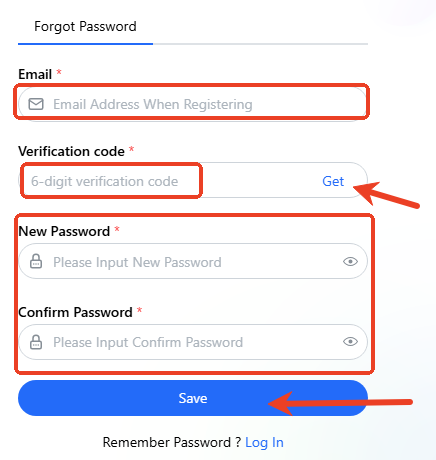
3. Check Your Email for the Verification Code#
Log into your email, open the email from ClonBrowser, and copy the 6-digit verification code.
4. Enter a New Password#
Return to the password reset page, enter the verification code and your new password. Make sure to keep your new password safe.
5. Log In with Your New Password#
After the password reset is successful, return to the login page and log in with your new password.
FAQ#
1. What if I don’t receive the reset email? Check your spam or promotions folder. If still not received, confirm the email address is correct.
2. What if the reset link has expired? Password reset links usually have a time limit. If expired, please request a new one.
3. Can I reset my password via phone number? Password reset is typically done through the registered email. Please follow the system prompts.
4. Will team data be lost after resetting my password? No. Password reset only affects login information — it does not affect browser environments or team data.
If you still can’t reset your password, please contact official customer support with your account information for assistance.