Team permission management#
Overview#
ClonBrowser manages team member permissions through roles.
In a team collaboration mode, members usually don’t need full operational permissions.
This feature is useful if you are facing any of the following:
- Want to control members’ scope of browser and proxy management
- Don’t want regular members to modify browser configurations
- Don’t want members to arbitrarily delete environments
- Want different roles to have different operational capabilities
- Need to establish a clear team management structure
With permission management, you can achieve environment sharing but controlled operations.
Step-by-step Instructions#
1. Create or Edit a Role#
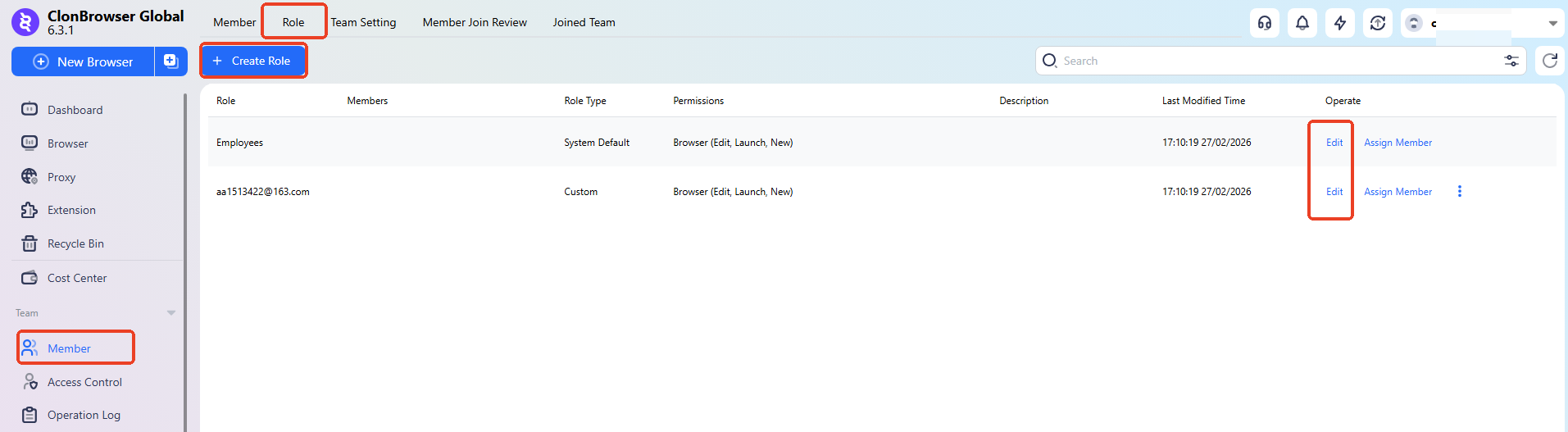
Go to 「Role Management」, click “New Role” or click “Edit” on an existing role.
2. Edit Role Permissions#
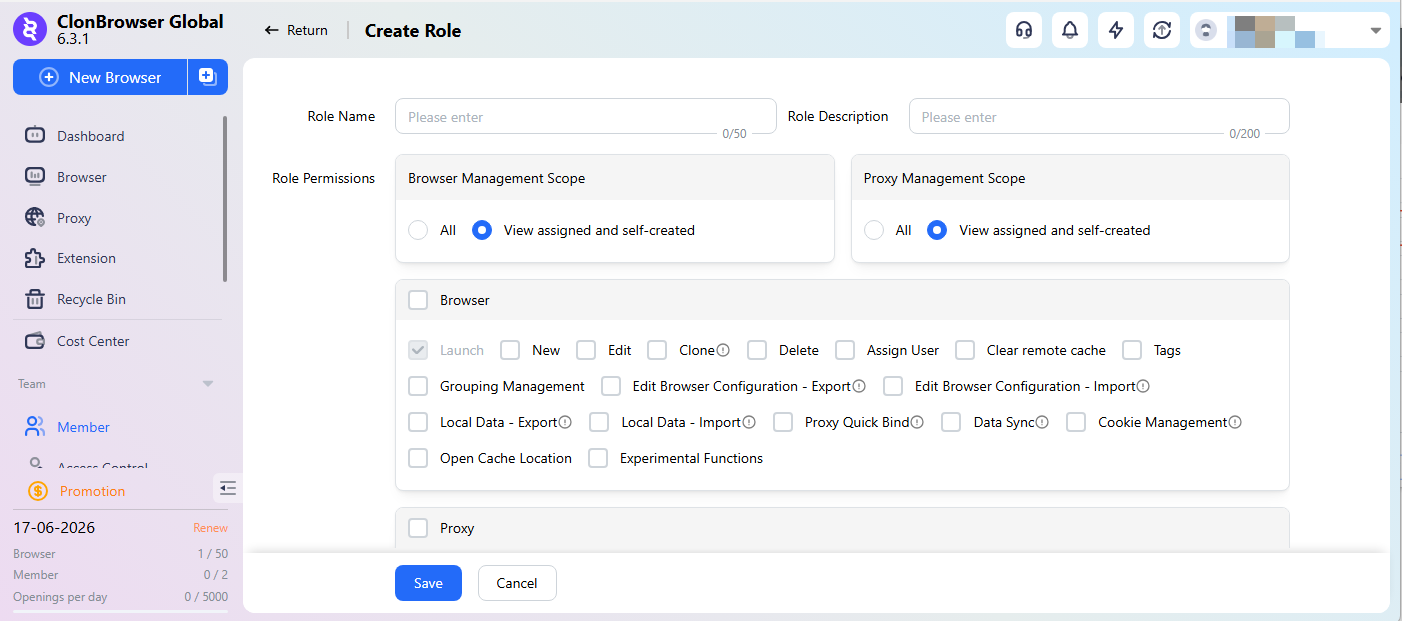
Based on business needs, define role permissions for different roles, for example:
- Whether to allow creating new browser environments
- Whether to allow editing proxies and fingerprints
- Whether to allow deleting browser environments
- Whether to allow exporting data
- Whether to allow managing team members
After saving, the role’s permissions take effect.
3. Assign Roles to Members#
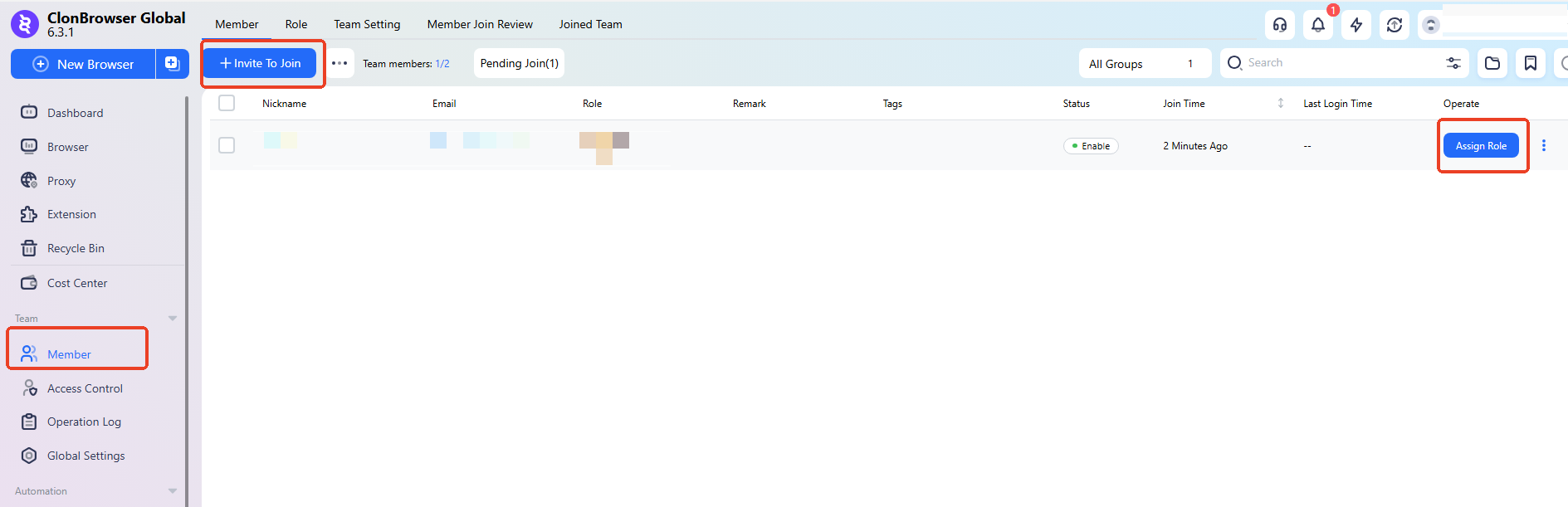
Go back to the member management page and assign the corresponding role to specific members.
After members re-log in, they will operate according to that role’s permissions.
FAQ#
1. Can regular members modify browser fingerprints or proxies? Depends on the permission settings. It’s recommended that only administrators have configuration modification permissions.
2. Can I set individual permissions for each member? Yes, by creating multiple roles with different permissions.
3. What if a member accidentally deletes an environment? It’s recommended to restrict delete permissions so only administrators can delete.